en


The MB8 app experience is the mobile site. Open it in Chrome or Safari, sign in with your usual account, and the full lobby, the cashier and the member area load in portrait without installing a thing.
That means there is nothing to download and nothing to sideload. A few taps put an icon on your home screen, so the site opens in one press like any other app, while your balance, promotions and history stay exactly as they are on desktop.
Chrome can save any site as a home screen icon, and it uses no storage for an installer package.
Because this is a browser feature rather than an installed package, the shortcut always loads the current version of the site. Nothing needs updating, and removing the icon simply removes the shortcut, not your account.
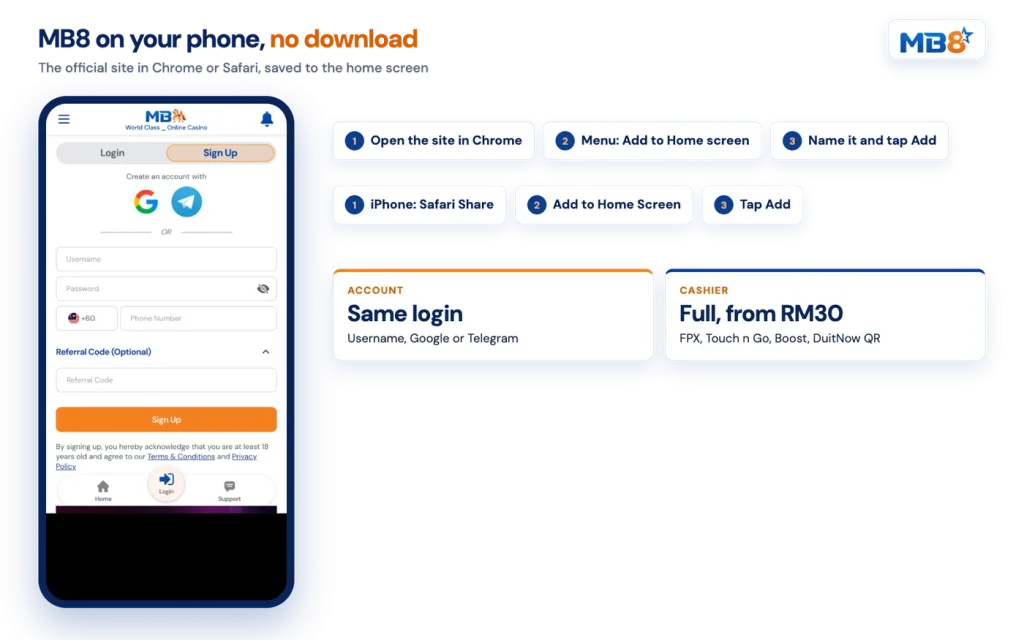
Safari handles the same job from the Share sheet. Here are both routes side by side.
| Device | Browser | Steps |
|---|---|---|
| iPhone or iPad | Safari | Tap the Share icon in the bottom bar, scroll to Add to Home Screen, edit the name, tap Add |
| Android phone or tablet | Chrome | Tap the three-dot menu, choose Add to Home screen or Install, tap Add |
On iPhone the Share icon is the square with an arrow pointing up. If you do not see Add to Home Screen straight away, scroll down the list of actions. One practical tip: create the shortcut while you are already logged in, so the first press from your home screen drops you into the lobby rather than the sign-in form.
Your account, balance and promotions are identical in the mobile browser. Open the site on your phone, sign in, and add the icon while you are there.
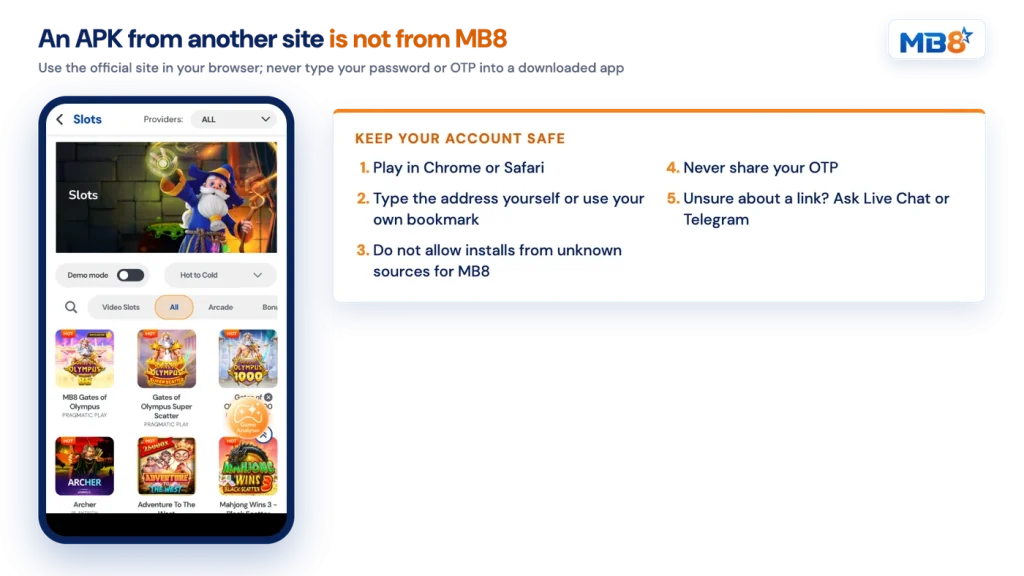
This is where care matters, so read it before you tap any link. We do not hand out APK files through third-party sites, file lockers, forums or messaging groups. Anything presented elsewhere as an installer for our platform did not come from us.
The risk with sideloading is well understood in general. Android will ask you to allow installs from unknown sources before an APK from outside the Play Store can run, and that permission also applies to whatever else you install afterwards. A package built by someone else can display a copy of a login screen, take the username and password you type, and ask for an SMS code on top. Once credentials and an OTP are in someone else’s hands, the account itself is exposed, and no amount of repair after the fact is as easy as avoiding the file.
Keep in mind
An APK file from a site other than ours is not from us. Do not install it, and never type your password or a one-time code into an app you downloaded from a link.
The safe route is simple. Use the browser you already trust, reach the site by typing the address or using your own saved bookmark, and add the home screen icon so you stop searching for it altogether. If a page, a chat message or an advert offers you a download and you are not sure what it is, ask first: our support team is on Live Chat and Telegram 24 hours a day, seven days a week, and confirming a link costs you nothing.
Provider games are reached the same way: every studio listed in our lobby, Mega888 included, is opened from the lobby with the same MB8 account.
Sign in with your username and password, or with the Google or Telegram account you connected at registration. Forgotten your password? Enter your phone number or username on the reset form and a new password is sent to you by SMS. If the message does not arrive after a resend, Live Chat can sort it out. The full detail on registration, account status levels and password recovery sits with our guide to signing in on mobile.
One point to settle early: the withdrawal feature stays locked until your phone number is verified. Open your profile, press Request OTP, enter the code from the SMS and press Verify. Doing this before your first cashout saves a stalled withdrawal later.
The Deposit button sits in the header on mobile, and every tab works in the browser. FPX covers 19 Malaysian banks, the E-Wallet tab covers Touch ‘n Go and Boost, DuitNow QR accepts payment from a range of banking and wallet apps, and Bank Transfer takes a receipt upload. The minimum is RM30 on each of those tabs. The crypto tab is also shown in the cashier and can sit under maintenance.
Two rules apply on any device. The depositor name must match the full name registered on your account, and the same goes for the account you withdraw to. Also keep gambling words and the brand name out of your transfer reference. Standard withdrawal processing is about 15 minutes, and if a request stays pending longer than that, Live Chat is the place to chase it.
Everything else, from slots with the Demo mode toggle to live tables and the sportsbook, sits behind the same menu you see on the desktop lobby. Portrait play is the default, the AI Analyzer opens from the same widget, and your Main Wallet, rebates and rewards follow you between phone and computer.